How to run your first LaunchGuarding scan
Direct answerAfter you log in, create a client, then a campaign with a landing URL. Paste copy on Ad assets, optionally add one creative image, open Scan, and click Run scan. A standard scan costs 5 credits. You do not need to connect Meta, Google, or TikTok first.
Your road to first scan
LaunchGuarding is an ad-policy preflight, not an Ads Manager replacement. You build a small workspace (client + campaign), paste the same fields you would submit to Meta, Google, or TikTok, and get a cited report before you spend. The homepage four-step overview is the sales version of this same path.
1. Sign in and land on the dashboard
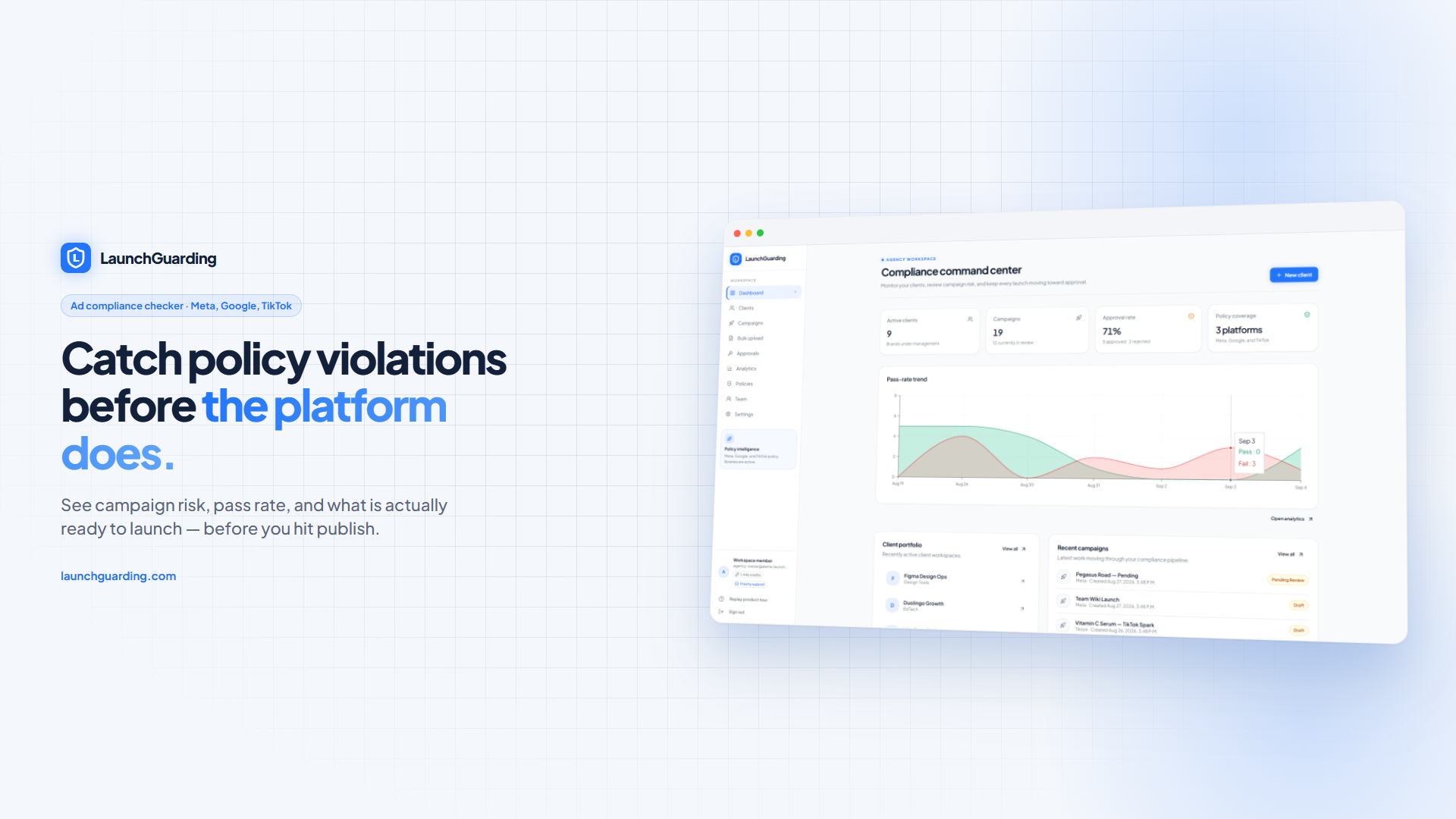
Go to Sign in. Create account asks for an agency / workspace name, work email, and password. After login you open Compliance command center at /dashboard. A 30-second tour covers client → campaign → scan; replay it anytime from the sidebar.
From the dashboard, the primary button is New client. Empty workspaces also show Add first client.
2. Create a client
Open New client. The form is a reusable brand profile — every campaign for that brand inherits it.
- Name (required) — e.g. PureGlow Skincare.
- Platforms (required, at least one) — Meta, Google Ads, TikTok. This is which networks the brand runs on. Each campaign still picks one platform when you scan.
- Optional: website, industry, countries, brand voice, approved terms, prohibited terms, required disclaimers, notes.
Click Create client. You land on the client page. You can also start from the sidebar Clients list.
3. Create a campaign
On the client page, click New campaign. If you go to Campaigns first and have no clients, the dialog tells you to create a client.
- Name — internal, e.g. “Summer shred — Meta feed”.
- Platform — Meta, Google, or TikTok. This sets the Ad assets field names (Primary text vs Description vs Ad text) and which policy set the scan uses.
- Landing page URL — optional at create time, but you want it for landing consistency. It is stored on the campaign and shown in the header (not edited on the assets tab).
Click Create. You open the campaign editor.
4. Add copy, landing URL, and a creative image
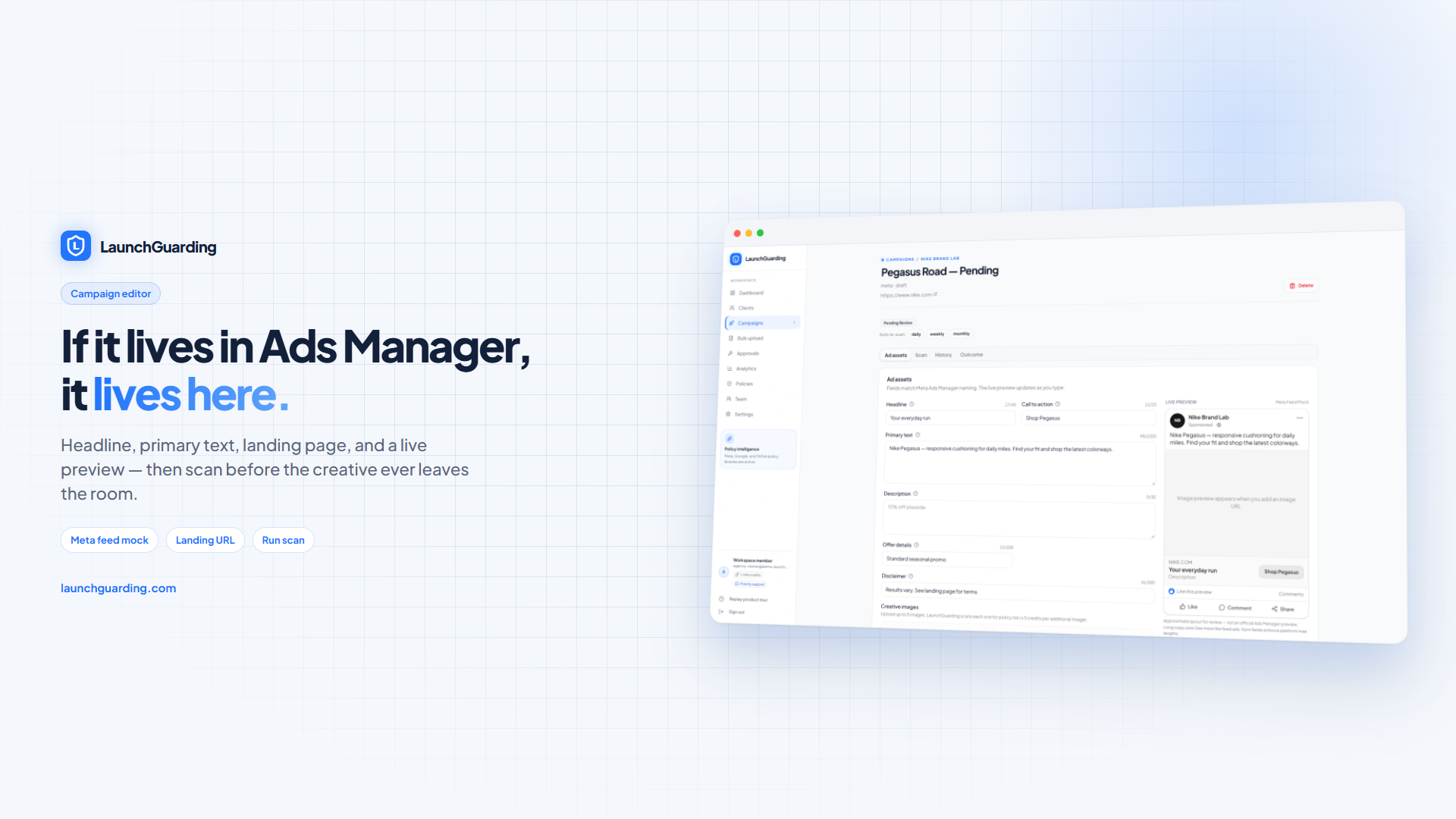
Stay on the Ad assets tab. Fields match that platform’s Ads Manager naming. The live preview updates as you type.
- Meta: Primary text is required. Also headline, call to action, description, offer details, disclaimer, creative images.
- Google: Description is the required body field.
- TikTok: Ad text is required.
Trial and Starter: upload 1 creative image (JPEG, PNG, WebP, or GIF, max 5MB). Growth and Agency can add up to 5. Drop a file or click to browse. The first image is tagged Primary.
Click Save assets before you scan. If you click Run scan with empty copy, you get “Add ad copy on the Assets tab first.”
5. Run the scan
Open the Scan tab. You do not pick the platform again — it is the campaign’s platform.
- Product category — Health and wellness, Beauty and skincare, Fitness and weight management, Ecommerce, Financial services, Business opportunity, or Other. Use Fitness and weight management for weight-loss ads.
- Scan type — Standard ad (5 credits) or Video script (8 credits) for Reels, Shorts, and TikTok scripts.
Click Run scan. The button shows Scanning… until it finishes. Trial workspaces start with 50 credits (enough for several first scans). Extra images on Growth add 3 credits each.
6. Read the report and fix the copy
Results appear on the same Scan tab. Look at:
- Overall readiness — Ready to launch at 70+; otherwise Needs revision.
- Scores for platform compliance, creative safety, landing consistency, and message match.
- Findings in your copy — highlighted phrases.
- Policy findings — severity, matched text, explanation, policy reason, and suggested fix.
- Compliant rewrite — Generate rewrite, edit if needed, Apply to asset, then re-scan.
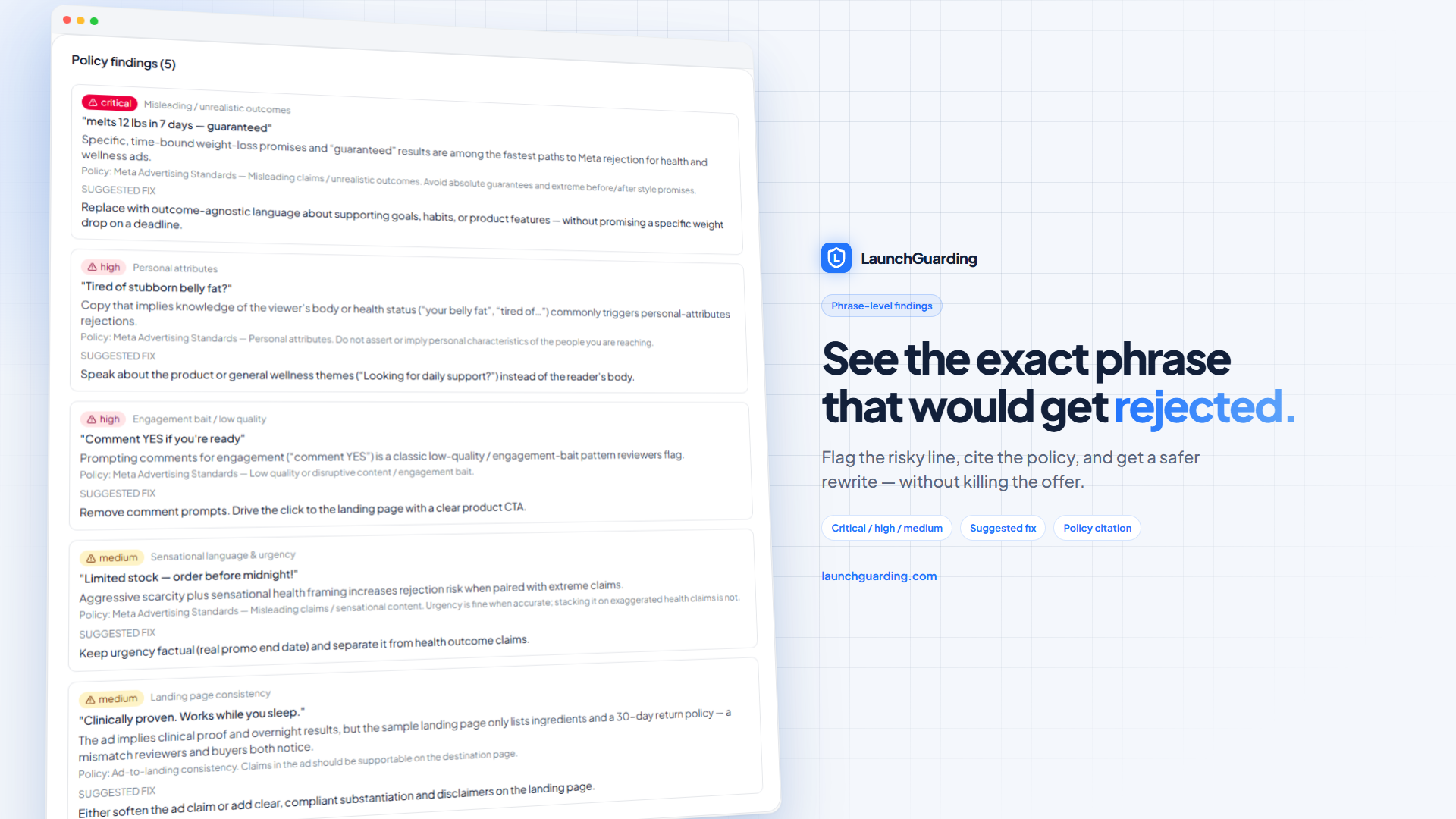
Want the layout without signing in? Open the sample report. Past scans live on the History tab.
What to skip on the first trial scan
Share with client (public report links) and the Approvals queue are Growth and Agency. Connecting Meta, Google, or TikTok is only needed if you later push an approved draft. Auto re-scans are also Growth+. None of that is required to get your first score.
If the scan will not run
- No primary copy saved → add text on Ad assets, Save assets, then scan.
- No credits left → upgrade or wait; the sidebar shows remaining credits.
- Image upload at the plan cap → Trial/Starter is 1 image; upgrade to add more.
- Wrong platform rules → the campaign platform is Meta, Google, or TikTok. Create another campaign if you need a second network. Same copy can fail differently on each — see using the same ad copy across platforms.
Frequently asked questions
How do I run my first LaunchGuarding scan?
Sign in, create a client (name plus at least one platform), create a campaign with a landing page URL, paste ad copy on the Ad assets tab, optionally upload one creative image, then open the Scan tab and click Run scan. A standard scan costs 5 credits.
Do I need a client before I can create a campaign?
Yes. Campaigns belong to a client. If you open Campaigns with an empty workspace, LaunchGuarding asks you to create a client first. The client profile (platforms, brand voice, approved and prohibited terms) is reused on every campaign you scan for that brand.
How many credits does a scan use?
A standard ad scan is 5 credits. A video-script scan is 8 credits. Extra creative images on Growth and Agency add 3 credits each. The 7-day trial includes 50 credits and does not require a card.
Can I upload a creative image on the trial?
Yes. Trial and Starter can attach 1 creative image per ad. Growth and Agency can attach up to 5. JPEG, PNG, WebP, and GIF up to 5MB are supported.
Do I have to connect Meta, Google, or TikTok to scan?
No. Connecting an ad account is optional and only needed later if you push an approved draft. First scan is copy, landing URL, and optional image inside LaunchGuarding.
Where do I see the report after a scan?
Results render on the Scan tab: overall readiness, scores, image analysis, flagged phrases, policy findings with suggested fixes, and a compliant rewrite. History keeps past reports. Sharing a public link is available on Growth and Agency.
Run the first scan on your own creative
50 trial credits, no card. Create a client, paste a draft, and see which phrases Meta, Google, or TikTok would likely reject — before you publish.